
Custom controls with Avalonia UI and OpenTK
Expand the table of contents
Avalonia UI is a modern, cross-platform UI framework for .NET that is heavily based on WPF but designed for Windows, Linux, macOS, iOS, Android and the web (via WebAssembly). [1] It offers a variety of basic elements to map typical UI scenarios. If these are not sufficient, Avalonia UI allows you to create your own extensions via custom controls.
Custom controls are reusable, individually designed UI elements. They can be used to design your own controls such as sliders, charts, complex input fields, and even 3D integrations that fit seamlessly into Avalonia’s styling and templating system. Custom controls in Avalonia UI give developers maximum design freedom and allow them to create a consistent, modern look and feel for their applications, regardless of the target operating system.
Since Avalonia UI relies on Skia (2D graphics) for rendering the user interface, native support for 3D applications – such as scientific visualisations, graphics-intensive programmes or games – is limited. This is where OpenTK comes in. [2]
OpenTK (Open Toolkit) is an open-source .NET library that provides direct access to modern OpenGL (platform-independent interface for developing 2D and 3D graphics), OpenGL ES (simpler OpenGL for embedded systems), OpenAL (audio) and OpenCL (parallel computing). [3] It serves as a link between .NET languages such as C# and the native graphics and computing APIs. This allows developers to render 2D and 3D graphics, output audio and perform GPU-accelerated calculations across platforms without having to write their own wrappers.
If you want to know how to use OpenTK with custom controls in conjunction with Avalonia UI, then you’ve come to the right place.
Example with a simple custom control
First, here is an example of how you can easily create your own custom control in Avalonia. It is an extended panel that automatically changes its background colour when the mouse hovers over it. To do this, it inherits from the existing Panel class, which contains the base class Control and forms the basis of a custom control. Furthermore, the PointerEntered and PointerExited events are used to dynamically adjust the background colour.
using Avalonia;
using Avalonia.Controls;
using Avalonia.Input;
using Avalonia.Media;

namespace AvaloniaAppExtendedPanel;

public class ExtendedPanel : Panel
{
    public static readonly StyledProperty<IBrush> HoverBackgroundProperty =
        AvaloniaProperty.Register<ExtendedPanel, IBrush>(
            nameof(HoverBackground),
            Brushes.LightGray);

    public IBrush HoverBackground
    {
        get => GetValue(HoverBackgroundProperty);
        set => SetValue(HoverBackgroundProperty, value);
    }

    private IBrush? _originalBackground;

    public ExtendedPanel()
    {
        // Subscribe to pointer events using AddHandler
        AddHandler(InputElement.PointerEnteredEvent, OnPointerEnter, handledEventsToo: false);
        AddHandler(InputElement.PointerExitedEvent, OnPointerLeave, handledEventsToo: false);
    }

    private void OnPointerEnter(object? sender, PointerEventArgs e)
    {
        _originalBackground = Background;
        Background = HoverBackground;
    }

    private void OnPointerLeave(object? sender, PointerEventArgs e)
    {
        Background = _originalBackground;
    }
}
Integrating the control into the UI:
<Window xmlns="https://github.com/avaloniaui"
        xmlns:AvaloniaAppExtendedPanel="clr-namespace:AvaloniaAppExtendedPanel"
        Width="400" Height="200">
    <AvaloniaAppExtendedPanel:ExtendedPanel
        HoverBackground="DarkGray"
        Background="LightGray">
        <TextBlock Text="Hello Custom Control!"
                   VerticalAlignment="Center"
                   HorizontalAlignment="Center"/>
    </AvaloniaAppExtendedPanel:ExtendedPanel>
</Window>
The result:
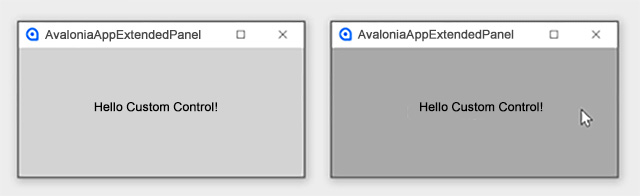
Figure 1: Hello Custom Control – the result of the simple example
Example of custom control with OpenTK
In order to create a working example, various aspects must be taken into account: it is not enough to simply draw a 3D object – the entire environment, interaction and display all play a role. This includes an interface in the user interface where the scene is displayed, options for input and interaction, a camera for viewing the space, a system for managing the objects to be displayed, and the way in which these objects are rendered, for example using shaders.
The OpenGlControlBase in Avalonia is an abstract base class for UI controls that enable OpenGL rendering. It is based on the Control class, a classic UI component within the Avalonia visual tree. Since it is an abstract class, it cannot be used directly, but must be extended by derivation and filled with its own logic.
In the next step, you create the actual control, OpenTkControl. This takes over the complete internal management of the components involved as well as the 3D logic and is based on the aforementioned OpenGlControlBase. It is recommended to outsource typical functionality such as graphics context provision, user input and camera control to an additional base class, OpenTkControlBase. Methods for initialisation, rendering and teardown can also be managed centrally there to keep the code clean.
OpenTkControlBase
The base class OpenTkControlBase contains the basic functionality for initialisation, control, camera management, rendering and clean-up. The initialisation of the OpenGL context is particularly important here, as OpenTK requires the bindings provided by Avalonia to display content correctly. Without setting the context correctly, OpenGL cannot render graphics.
/// <summary>
/// Wrapper to expose GetProcAddress from Avalonia in a manner that OpenTK can consume.
/// </summary>
internal class AvaloniaTkContext(GlInterface glInterface) : IBindingsContext
{
    public nint GetProcAddress(string procName) => glInterface.GetProcAddress(procName);
This wrapper enables OpenTK to bind OpenGL functions via Avalonia.
protected sealed override void OnOpenGlInit(GlInterface gl)
{
    //bind Avalonia context to OpenGL
    _avaloniaTkContext = new(gl);
    GL.LoadBindings(_avaloniaTkContext);

    Init(); //more initialization in sub class
}
The camera class [LINK] encapsulates all important vectors and parameters of the camera used. These include the relative position, direction vectors, orientation (pitch, yaw, roll) and the field of view (FOV) used. The class provides methods for dynamically manipulating the camera parameters, as well as functions for calculating the view and projection matrices. The latter are discussed in more detail in the Shader section.
The InputManager [LINK] manages all user input. In this implementation, Avalonia’s OpenGL context is used, not OpenTK’s standard event layer. Therefore, input from Avalonia must be intercepted and forwarded to the OpenTK Custom Control. The InputManager records the current state of the keyboard and mouse depending on the update cycle.
Important: In order for the Custom Control to receive the inputs, it must implement the ICustomHitTest interface. Without this interface, no input events will be forwarded to the control.
Organising 3D objects
Before the actual OpenTKControl, the organisation of 3D objects should also be considered.
When working with the modern OpenGL standard, the question quickly arises: How do I organise 3D objects so that they are easy to manage and render?
Here, too, a separate class is useful, containing all the relevant data and resources for a single 3D object. The central components of the class for this are buffers, shaders and transformations. You can find the corresponding file here.
Transformations
In order for a 3D object to be displayed correctly in the scene, it needs not only the pure graphics data but also information about where it is located and how it is displayed. Typically, the associated class manages three basic properties for this purpose:
- Position: the coordinates of the object in space
- Rotation: the orientation, usually stored as an angle or quaternion
- Scaling: the size or stretch of the model
A model matrix is calculated from these values. This matrix combines translation, rotation and scaling into a single arithmetic operation and is passed to the shader during rendering so that the object is correctly placed and displayed in 3D space.
Buffer
In order for OpenGL to know what an object looks like, the vertex data must be stored in buffers. The class takes care of creating these buffers (e.g. VBO, VAO, EBO) and stores the associated memory addresses so that they can be accessed quickly later during rendering. For this reason, VBO, VAO and EBO are stored in the graphics memory (GPU memory) and not in the normal working memory of the CPU.
The meaning of the usual standard buffer objects:
- The VBO (Vertex Buffer Object) contains the vertex data of a model.
- The EBO (Element Buffer Object, also known as Index Buffer Object) stores indices that define how the vertex data is assembled into triangles.
- The VAO (Vertex Array Object) only stores the configuration, i.e. which VBOs are used for which attributes and how they are interpreted. A VAO is like a ‘map’ that tells the GPU how to use VBO and EBO during rendering.
Info: In addition to these buffers, other individual buffers are also possible, for example for the UV texture coordinates of a 3D object, if required. This is a frequently used structure, but it can also be set up differently as desired, so that the VBO can also contain the texture position information (configured via VAO).
Shader
Each object to be rendered requires its own shader programme. A separate shader class [LINK] takes on the task of reading in the shader sources (in GLSL – OpenGL Shading Language), compiling them and then linking them to an executable programme. This programme is then bound in memory and is available to the respective object.
A shader programme typically consists of two components: vertex shaders and fragment shaders, both of which are written in a C++-like language.
The vertex shader works at the level of individual vertices. It calculates the final position of a vertex on the screen based on the data provided, such as position, model, view and projection matrices. These matrices ensure that the object is correctly transformed, viewed from the correct perspective and adjusted to the screen coordinates. In addition, the vertex shader can pass on further information, such as colours or texture coordinates, to the fragment shader.
#vertex shader

#version 300 es
layout(location = 0) in vec3 aPos;
layout(location = 1) in vec3 aCol;

uniform mat4 model;
uniform mat4 view;
uniform mat4 projection;

out vec3 vCol;

void main()
{
    vCol = aCol; //export color and give to fragment shader
    // transformation from right to left (OpenGL conform) in the vertex shader => Shader UniformMatrix4 must use transposed=false
    gl_Position = projection * view * model * vec4(aPos, 1.0);
The fragment shader is responsible for determining the final colour for each individual pixel (fragment) by combining the interpolated values of the vertex shader with the transferred colour and texture data.
#fragment shader

#version 300 es
precision mediump float; // required in fragment shaders
in vec3 vCol;
out vec4 FragColor;

void main()
{
    FragColor = vec4(vCol, 1.0);
}
Additional logic can be implemented in the shader files to manipulate the vertex and colour information in a targeted manner and thus create different effects. The shader library from Geeks3D [LINK] shows the creative possibilities that shaders offer.
In addition to vertex and fragment shaders, OpenGL provides other shader types. These include geometry shaders, which work on already transformed primitives and can create or modify new geometry. Tessellation shaders make it possible to dynamically subdivide geometry in order to render fine details such as curves or complex surfaces. There are also compute shaders, which run independently of the classic render pipeline and are used for general calculations on the GPU – for example, for physics simulations or image processing.
OpenTkControl
All of the previously defined steps come together in the main class [LINK]. The base class provides central methods that control the lifecycle of the control:
- OnOpenGlInit – for initialisation
- OnOpenGlRender – for rendering each frame
- OnOpenGlDeinit – for cleaning up
These ensure that the corresponding methods of the main class are executed.
Initialisation
During initialisation, all required shaders and 3D objects are loaded and stored in the GPU memory. This makes them available for rendering and allows them to be used efficiently.
private readonly List<MyObject> _myObjects = [];
…

//Initialize all needed resources
protected override void Init()
{
    …
    //create and link shader
    var shader = new Shader("Shaders/shader.vert", "Shaders/shader.frag");

    //visual coordinate axis
    var coordinateAxisModel = MyObject
        .CreateTestObject(id: 0, ModelData.CoordinateAxisModel.Vertices, ModelData.CoordinateAxisModel.Colors, ModelData.CoordinateAxisModel.Indices, shader);

…

    _myObjects.Add(coordinateAxisModel);
…
}
Render Loop
The render loop is divided into two phases: update and render.
In the update phase, all frame-independent values are updated and inputs are evaluated. This includes, for example, adjusting the camera position or animating 3D objects based on the delta time that has elapsed since the last frame.
During the render phase, the data from the previous frame is cleaned up and the objects are displayed on the screen using their shaders and the required matrices. If a fixed frame rate is set, rendering is only performed if enough delta time has elapsed since the last frame.
protected override void Render()
{
    …
    var now = Stopwatch.GetTimestamp() / (double)Stopwatch.Frequency;
    var delta = now - _lastFrameTime;
    DoUpdate(delta);
    if (delta < _frameInterval) // only render if enough time has passed (to limit FPS)
    {
        return;
    }
    _lastFrameTime = now;

    // set correct viewport size
    var correctRenderSize = GetCorrectRenderSize();
    GL.Viewport(0, 0, correctRenderSize.X, correctRenderSize.Y);

    // clear previous data
    GL.ClearColor(_clearColor);
    GL.Clear(ClearBufferMask.ColorBufferBit | ClearBufferMask.DepthBufferBit);

    DrawScene();
}

private void DoUpdate(double delta)
{
    RotateModel(delta);
    EvaluateInputs(delta);
}

private void DrawScene()
{
    foreach (var myObject in _myObjects)
    {
        myObject.Shader.Use();
        var model = myObject.GetModelMatrix();
        var view = Camera.GetViewMatrix();
        var projection = Camera.GetProjectionMatrix(Bounds.Width, Bounds.Height, 0.1f, 100.0f);
        myObject.Shader.SetMatrix4("model", model);
        myObject.Shader.SetMatrix4("view", view);
        myObject.Shader.SetMatrix4("projection", projection);
        myObject.Draw();
    }
}
Example application:
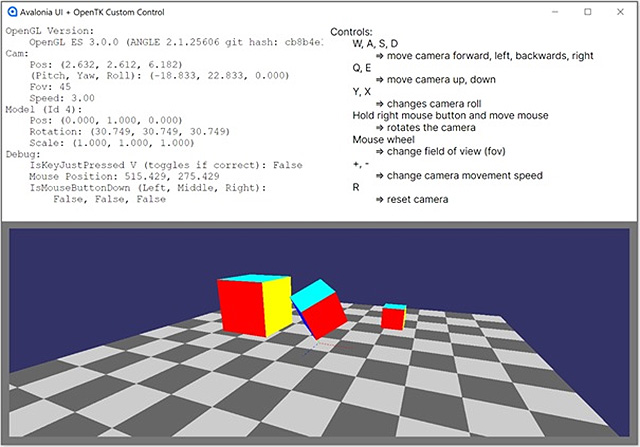
Figure 2: Example application with Avalonia UI and OpenTK
Cleanup
During cleanup, all used resources are released again. This includes shaders, textures, 3D objects and other GPU resources that were created during runtime. This ensures that no memory is wasted and that the application can be terminated cleanly.
Alternative styling option
As can be seen in the ExtendedPanel example, it would also be possible to control the appearance – such as the background colour of the 3D view – directly via the internal Avalonia styling system. This allows standard Avalonia styles to be used or customised without having to change the shader logic.
Conclusion
With Custom Controls in Avalonia, you can elegantly integrate both simple and complex functions into the user interface. This makes it possible to flexibly extend the standard UI and also implement specialised displays, such as 3D views.
The integration of OpenTK opens up the possibility of using powerful 3D graphics in Avalonia applications. However, the learning curve for OpenTK is quite steep without prior OpenGL experience. But once you have familiarised yourself with it, you will have a powerful tool for implementing cross-platform 3D applications in .NET.
Notes:
The entire repository for the example described can be found here on GitHub.
[1] Further information on Avalonia UI.
[2] Further information on OpenTK.
[3] There are several alternatives to OpenTK, such as Silk.NET (modern, very high-performance and offers Vulkan and Direct3D support in addition to OpenGL), SharpGL (intended more for simpler OpenGL applications) or Veldrid (abstracts several graphics APIs such as OpenGL, Vulkan, Direct3D or Metal and allows more flexible backend targeting).
Here you can find an article about Avalonia UI and the development of a cross-platform WPF application with .NET Core.
Would you like to discuss this topic as an opinion leader or communicator? Then feel free to share the article in your network.
Marco Menzel has published two more articles on the t2informatik Blog:

Generating unit tests with AI
Creating applications with Avalonia UI

Marco Menzel
Marco Menzel is a junior software developer at t2informatik. He discovered his enthusiasm for computers and software development at an early age. He wrote his first small programmes while still at school, and it quickly became clear that he wanted to pursue his hobby professionally later on. Consequently, he studied computer science at the BTU Cottbus-Senftenberg, where he systematically deepened his knowledge and gained practical experience in various projects. Today, he applies this knowledge in his daily work, combining his passion with his profession.
In the t2informatik Blog, we publish articles for people in organisations. For these people, we develop and modernise software. Pragmatic. ✔️ Personal. ✔️ Professional. ✔️ Click here to find out more.